
Change the settings
The Settings page shows the settings of the workspace and of each company. You must have the Edit workspace settings permission or the Edit company settings permission.
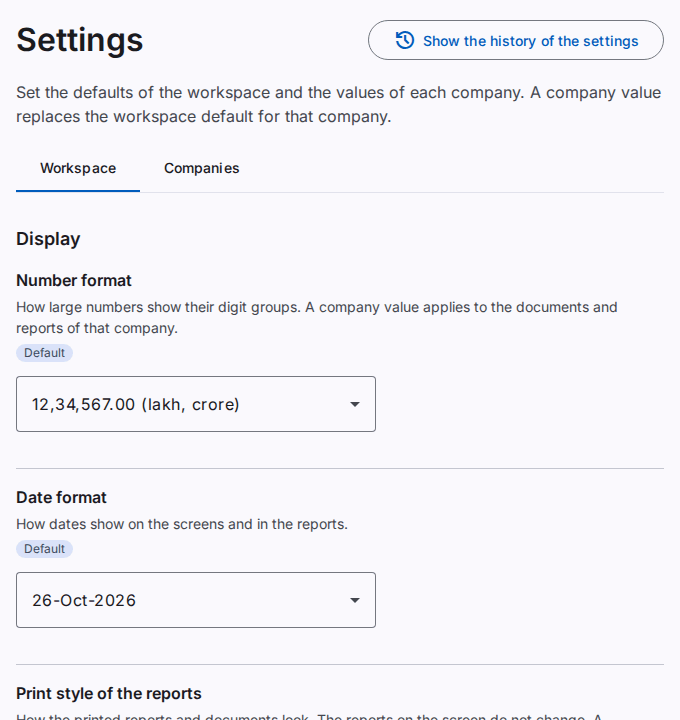
What the page shows
- The Workspace tab shows the workspace values. You must have the Edit workspace settings permission.
- The Companies tab shows the values of one company. You must have the Edit company settings permission for the company.
- The settings are in groups, for example Display and Security.
The source of a value
Each setting shows a label with the source of the value:
- Default: the system value. Nobody set a value.
- Workspace setting: the workspace value. It applies to all companies that do not have their own value.
- Company setting: the value of this company. It replaces the workspace value for this company.
When a setting has its own value, the page also shows the Inherited value and its source. The inherited value applies when you remove the own value.
Change a setting
- Select the Workspace tab or the Companies tab.
- On the Companies tab, select the company in the Company list.
- Select the new value of the setting.
The page shows "The setting is saved."
Use the inherited value
- Below the setting, select Use the inherited value.
The setting shows the inherited value and its source again.
Print style of the reports
Print style of the reports sets how the printed reports and documents look. The reports on the screen do not change. You can set a workspace value and a value for each company. All users of a company get the same prints.
- Clear: a white page, one rule under the header and thin lines between the rows. This is the default.
- Auditor: serif figures and a centred title. Only the amounts of a total have rules under them.
- Banded: a coloured header and a row of key totals under it, for example the opening and the closing balance.
- Grid: a border around each cell, with narrow type. More columns fit on a page.
Paper saving in the print dialog removes the colours and the key totals of Banded. To see the style, print a sample. Refer to Set the logo and the header of prints.
Accounting settings
Balances of a party with two roles sets what happens when one party is a customer and a supplier (or an employee) at the same time:
- Separate balances (manual set-off): each role keeps its balance. A user posts a party set-off to move an amount between the roles.
- Automatic netting: at each posting, the product sets off the balances of the roles that are on opposite sides. It makes a set-off document with the status "Automatic". This is the default.
Caution: A change applies to the postings after the change only. The earlier balances do not change.
Negative cash balance sets what happens when a payment or a transfer makes a cash account negative, on the date of the document or today:
- Warn (the user confirms): the product asks before it posts. This is the default.
- Block the posting: the product does not post.
- Allow without a warning.
Bank accounts have no check. Refer to Record a payment.
Automatic posting of drafts tells when the system posts a draft without a user. It applies to journal vouchers, receipts, payments, transfers and party set-offs:
- After a number of days from the document date: the draft posts on that day, in the night. Days before the automatic posting gives the number of days (1 to 90, default 7). This is the default.
- When the draft is saved: the system tries to post the draft directly after each save.
- Never (a user posts each draft).
The system posts a draft only when all the checks of a posting pass. A draft that cannot post shows on the Posting exceptions page.
Caution: a change applies to new drafts only. A draft that exists keeps the rule and the day of its first save, also when a user saves it again. After the change, the page shows the number of these drafts.
Description necessary to post a journal voucher: when it is on, a journal voucher without a description cannot post. It is off by default. Then the description is optional, and each line can have its own text.
Show the balances on party documents sets the default of the print of a receipt or a payment: when it is on, the print shows the previous balance, the amount and the new balance of the party. It is on by default. The print dialog can change it for one print.
Security settings
You must have the Edit security policy permission to change Allow “Keep me signed in”. The system can ask for your password again. If the Confirm it is you dialog opens, type your Password. If the dialog also shows Code from the app, type the code from your authenticator app. Then select Confirm.
When you set Allow “Keep me signed in” to Off, the sessions that are open now continue.
Two settings control how long a session stays open. You must have the Edit security policy permission to change them.
- Minutes before an unused session ends: a user who does nothing for this time must sign in again. Type a number from 5 to 60. The default is 30.
- Longest session in hours: a user must sign in again after this time, also when the user works all the time. Type a number from 1 to 12. The default is 12.
A change applies at the next sign-in of each user. The sessions that are open now keep their limits. The service has its own upper limits: a longer time does not go above them. The two settings do not apply to a session with "Keep me signed in". Each change goes to the security log.
Second sign-in step sets who must use an authenticator app or a passkey: Optional for all users, Required for administrators (users who can manage users, roles or the workspace), or Required for all users. A new workspace starts with Required for administrators. The rule applies at the next sign-in of each user. A user without a second step then must set one up before the user can work. See Set up the second sign-in step when it is required.
If you cannot change a setting, the page shows "You cannot change this setting."
The history of the settings
Select Show the history of the settings to see who changed a setting and when. Refer to See the business history.