
Add or change a party
You must have the Add parties permission to add a party, and the Change parties permission to change it. A user without these permissions sees the party, but cannot change it.
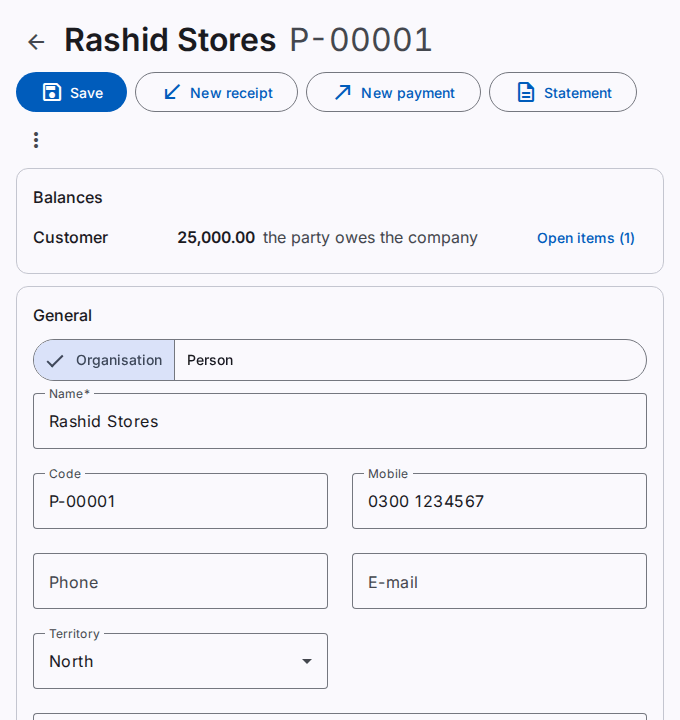
Add a party
- On the Parties page, select New party.
- Select the type: Organisation or Person.
- Type the Name.
- Leave the Code empty to get the next code of the company, for example P-00007. You can also type your own code.
- Type the phone numbers, the e-mail address, the CNIC, the NTN and the STRN. All of these fields are optional.
- Select the roles. Refer to "The roles" below.
- Add the tags, the addresses and the contacts.
- Select Save.
The page shows "The party is added."
The duplicate warning
Caution: Do not add a party two times. Two records of one customer give two balances.
When another party of the company has the same phone number, CNIC or NTN, the dialog Is this the same party? opens. The dialog shows the code and the name of the other parties.
- Select Go back to check the details. Or, select Save anyway when it is a different party.
The roles
A party can be a Customer, a Supplier and an Employee. Each role has its own balance on its control account. The company sets the control accounts on the Posting accounts page.
- A customer role and a supplier role can have a Group. The group gives defaults, for example a price list. Refer to Manage the party groups, tags and towns.
- An employee who sells or collects money is a Salesman or recovery officer. Only a salesman can have a territory.
- An employee can be linked to a User. A field agent then sees the customers of the territories of this employee. You must also have the View users permission.
You can remove a role only while nothing uses it. A salesman with a territory stays a salesman until the territory has another person. A role with postings cannot be removed. A role with a balance cannot be made inactive.
Balances
The Balances card shows the balance of each role today. You must have the View party balances permission.
- "the party owes the company": for example a customer who must pay you.
- "the company owes the party": for example a supplier that you must pay, or an advance from a customer.
Select Open items to see the documents that are not settled, the oldest first. Each new posting settles the oldest open items of the other side of the role. An amount with no open item to settle stays open as an advance.
To move a balance between two roles of the party, for example from the customer role to the supplier role, use a party set-off.
Receipts and payments of the party
Select New receipt or New payment at the top of the page. The new document has the party in its first line. Refer to Record a receipt and Record a payment.
The statement of the party
Select Statement at the top of the page. The party statement opens with the entries of the party. You must have the View party reports permission.
The CNIC
The product keeps the CNIC encrypted. The pages show only the last 4 digits.
- To see the full number, select Show. The security log records each view.
- To change the number, select Change. Type the new number. Leave the field empty to remove the number.
Tags
- In the Add a tag field, type a tag.
- Select a tag of the list. Or, press Enter to add a new tag to the list.
Capital and small letters are the same tag. "Wholesaler" and "wholesaler" are one tag.
Addresses
A party can have many addresses, for example a billing address and a delivery address. One address is the Default address.
- Select Add an address.
- Select the kind of the address. Type the address lines.
- Select the Country and the Province.
- In the Town field, type the start of the name. Select the town in the list.
When the list does not have the town, select Add "…" as a town of the workspace. The town is then in the list of your workspace.
Contacts
A party can have many contacts, for example a manager and an accountant. Select Add a contact. One contact can be the Main contact.
Copy a party to another company
Parties belong to one company. To use a party in another company of the workspace, copy it.
- Select More actions. Select Copy to company.
- Select the Company. Select Copy.
The copy gets the details, roles, addresses, contacts and tags. It does not get the balances, the territory or the user.
Deactivate a party
You must have the Deactivate parties permission.
- Select More actions. Select Deactivate.
- Select Deactivate again in the dialog.
Caution: You cannot deactivate a party with a balance. Settle the balance of each role first.
An inactive party does not show in the lists of new documents, and it gets no new postings. Its records stay. Select Activate to use the party again.