
Make and post a journal voucher
A journal voucher records an entry that is not a receipt or a payment, for example a correction, an accrual or a transfer between two accounts. You must have the View journal vouchers permission to see the Journal vouchers page.
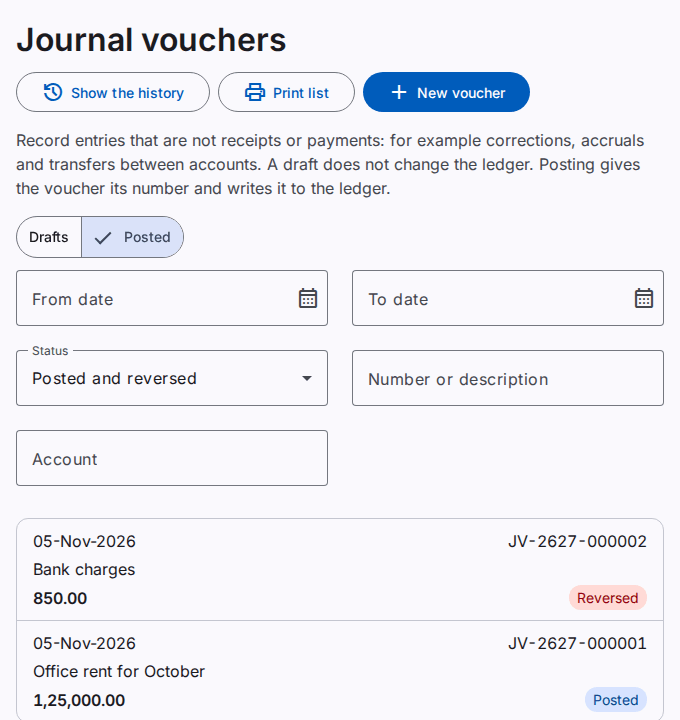
A voucher is first a draft. A draft does not change the ledger, and you can change it or delete it. When you post the voucher, it gets its number (for example JV-2627-000001) and the ledger gets a journal entry. You cannot change a posted voucher. To correct it, reverse it.
Make a draft
You must have the Make journal vouchers permission.
- Select New voucher.
- Type the Date. You can type a short form, for example
tfor today or5/3for 5 March. Refer to Type dates and amounts quickly. - Select the Branch. The default is the branch in the top bar.
- Type the Description. The description is optional, unless the company settings make it necessary. The ledger shows it with each line.
- On each line, type the account code or a part of the account name. Select the account in the list.
- Type the Debit or the Credit of the line. A line has one side only.
- Select Save draft, or push Ctrl+S (Cmd+S on a Mac).
Push Enter to go to the next field. After the last field of a line, Enter goes to the next line. To delete a line, select the bin icon at the end of the line.
The page shows "The draft is saved." A draft can be incomplete, and its debit and credit can be different. You can continue later.
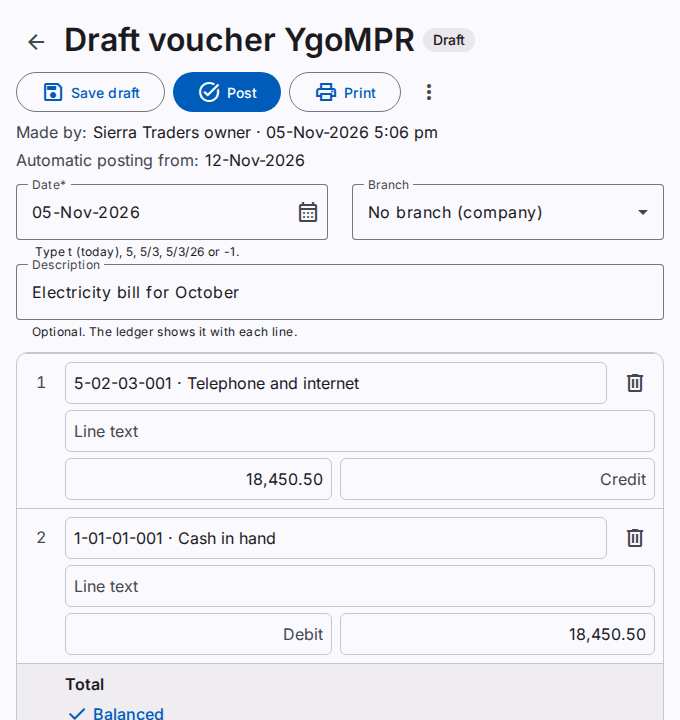
The Total row shows the total debit, the total credit and the difference. The difference shows in red until it is zero.
Lines for customers, suppliers and employees
The accounts for customers, suppliers and employees show in the list as "with a party". A line on one of these accounts needs a party.
- Select the account.
- In the field under the account, type the code or a part of the name of the party.
- Select the party in the list. The list shows only the active parties with the role of the account.
When you post the voucher, the amount goes to the balance of the party. The open items of the party settle in date order: the oldest first. Refer to Add or change a party.
Stock accounts show as "not for vouchers". Stock documents use these accounts.
Post a voucher
You must have the Post journal vouchers permission. This permission is not available in a support session.
- Open the draft.
- Select Post.
The page saves your changes first. Then the voucher gets its number and the status Posted. The voucher must have at least 2 complete lines, and a total debit equal to the total credit. If the company setting Description necessary to post a journal voucher is on, the voucher must also have a description. The date must be in an open month of a fiscal year, and it cannot be after today.
If the page shows an error, correct the voucher. Select Post again.
A draft that you do not post shows the date Automatic posting from. On that date the system posts the draft, if all the checks pass. If the saved draft cannot post now, the page shows the reason under Cannot post now. On the date of the automatic posting, a draft that cannot post goes to the Posting exceptions page. The company settings can change the number of days, or stop the automatic posting.
To change a posted document in its own month, use Correct and not a reversal. Refer to Correct a posted document.
Reverse a posted voucher
You must have the Reverse journal vouchers permission. This permission is not available in a support session.
Warning: You cannot undo a reversal.
- Open the posted voucher.
- Select Reverse.
- Type the Reason.
- Check the Date of the reversal. The default is the date of the voucher. The date cannot be before the date of the voucher.
- Select Reverse.
The ledger gets a journal entry with the opposite amounts. The voucher stays visible with the status Reversed, the reason and the number of the reversal entry. To enter the correct amounts, make a copy.
Copy a voucher
- Open the voucher.
- Select More actions (the three dots).
- Select Copy as new draft.
The new draft has the same branch, description and lines. Its date is today. Check the draft and save it.
Delete a draft
You must have the Delete draft vouchers permission. You can delete only a draft. A posted voucher stays in the books.
- Open the draft.
- Select More actions.
- Select Delete draft.
- Select Delete draft in the dialog.
The draft and its files are deleted. The business history keeps a record of the draft.
Add files
You can add a scan or a photo of the paper proof, for example a bill. You must have the Change draft vouchers permission.
- Open the voucher.
- In Files, select Add file.
- Select the file.
Use PDF, JPEG, PNG or WebP files of up to 10 MB. A voucher can have up to 20 files. You can add files to a draft or to a posted voucher. You can remove a file only from a draft.
Print a voucher
You must have the Print journal vouchers permission.
- Open the voucher.
- Select Print.
- Select the language, the paper size, the orientation and the layout. The default paper size is A5.
- Select Print.
The PDF file opens in a new tab. The print shows the company header, the number, the date, the branch, the status and the description. It also shows the lines, the totals, the amount in words and the signature boxes of the company. Refer to Set the logo and the header of prints.
If you print a draft that has changes, the system saves the draft first. A draft prints with the mark DRAFT. A reversed voucher prints with the mark REVERSED and the journal entry and date of the reversal.
To print many vouchers, go to the list page and set the filters. Then select Print list. Each voucher prints on a new page, in the order of the date and the number. A list can have up to 500 vouchers.
The History panel of the voucher shows each print, with its language and its copy number.
Find a voucher
The page has two lists: Drafts and Posted. The Posted list also shows reversed vouchers. Use the filters to find a voucher by date, number, description or account. The search finds a number that starts with the text. It also finds a description that contains the text. To search a description, type at least 2 letters or digits. When the list has more than 1000 vouchers, the page shows "of more than 1000".
The history of a voucher
The History panel of a voucher shows who made, changed, posted, reversed and printed it. Select Show the history on the list page to see the history of all vouchers. Refer to See the business history.