
Manage the roles
A role is a set of permissions. The Roles page shows all the roles of the workspace. You need the permission View roles to open the page.
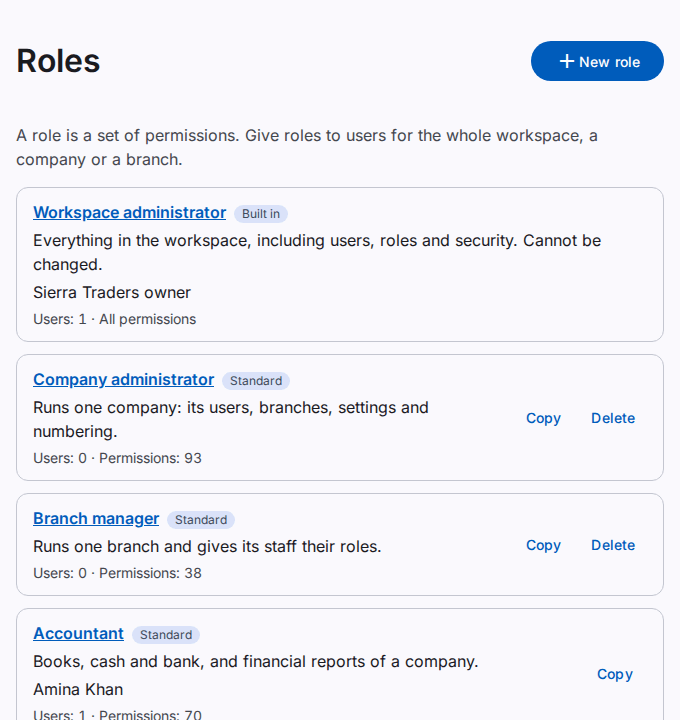
What the page shows
Each role has a card with the name, the description and a label for the type of role:
- Built in: the Workspace administrator role. It always has every permission, also new permissions. Nobody can change or delete it.
- Standard: a ready-made role that comes with the workspace, without changes.
- Standard, changed: a standard role that somebody in the workspace changed.
- Custom: a role that somebody in the workspace made.
The card also shows Users: with the number of users who hold the role, and Permissions: with the number of permissions. If you have the permission View users, the card also shows the names of some users who hold the role.
What you can do on this page
- Select the name of a role to see its permissions and its users. See Make or change a role.
- Select New role to make a role. You need the permission Create roles.
- Select Copy on a role to make a new role with the same permissions. You need the permission Create roles.
- Select Delete to delete a role. You need the permission Delete roles.
Delete a role
The Delete button shows only on a role that nobody holds. To delete a role that users hold, remove the role from all users first.
- Select Delete on the role.
- Select Delete in the dialog.
- If the app shows Confirm it is you, type your password in Password. If the dialog also shows Code from the app, type the code. Then select Confirm.
The role does not show on the page after this step.