
Make or change a role
On this page you see, make or change a role. To make a role, you need the permission Create roles. To change a role, you need the permission Edit roles.
Before you start
- You can add only the permissions that you hold yourself for the whole workspace. The system refuses other changes and records them in the security log.
- Nobody can change the Workspace administrator role.
- Without the permission to change the role, the page shows the role but you cannot change it.
What the page shows
- Users with this role: the users who hold the role and the place of each role. Users outside your companies or branches are not listed. This card shows only for a role that exists, and only when you have the permission View users.
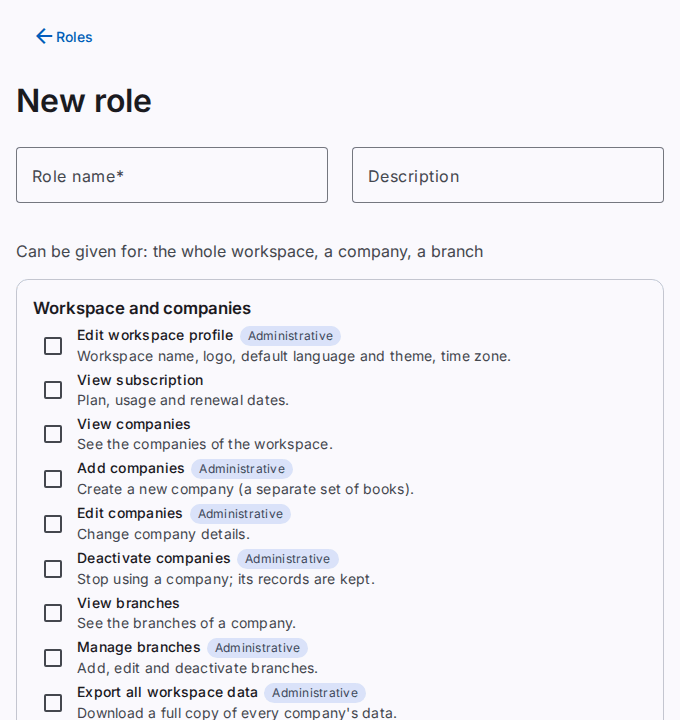
- Can be given for: the levels where a user can hold the role (the whole workspace, a company or a branch). This depends on the permissions of the role.
- The permissions, in groups. Each permission has a short help text.
- The label Included shows on a permission that another selected permission needs. The system adds it automatically.
- The label Administrative shows on a permission that lets a user manage users, roles or the workspace.
Make a role
- Select Roles.
- Select New role. To start from an existing role, select Copy on that role.
- Type the name in Role name.
- Optional: type a text in Description.
- Select the permissions for the role.
- Select Save.
- If the app shows Confirm it is you, type your password in Password. If the dialog also shows Code from the app, type the code. Then select Confirm.
Change a role
Caution: The change applies at once to all users who hold the role.
- Select Roles.
- Select the name of the role.
- Select or clear the permissions.
- Select Save.
- If the app shows Confirm it is you, type your password in Password. If the dialog also shows Code from the app, type the code. Then select Confirm.
For a standard role, you can keep Role name empty. The role then keeps the standard name in every language.
Remove a user from the role
- In Users with this role, select the cross next to the user.
- Select Remove role.
- If the app shows Confirm it is you, type your password in Password. If the dialog also shows Code from the app, type the code. Then select Confirm.
Result
After Save, the Roles page opens and shows the role.