
See the balances of the parties
The party balances report shows the balance of each party on a date, or the movement of each party in a period. You must have the View party reports permission.
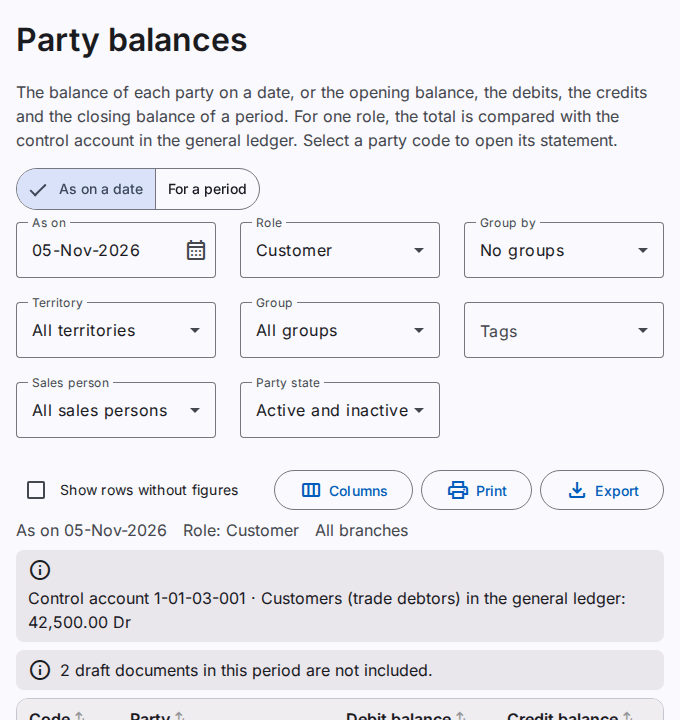
Select the date or the period, and the role
- Select As on a date or For a period.
- For As on a date, type the date in As on. The default is today.
- For For a period, type the From and To dates. The default is the start of the fiscal year to today.
- In Role, select Customer, Supplier or Employee. Or, select All roles (net balance) to see one net balance for each party.
Make groups
In Group by, select Territory, Party group or Sales person. Each group has a total. The last row shows the grand total.
The territory, the sales person and the recovery officer are those of today, also for an earlier date.
Use the filters
- Territory: the parties of the territory and of the territories under it.
- Party group: the parties of one group of the role.
- Tags: the parties with the tags. When you select two or more tags, select All tags or Any tag.
- Sales person: the parties of the territories of the sales person today.
- Party state: active parties, inactive parties, or both.
The report for a period
The report has four amount columns: the Opening balance on the day before the period, the Debits and the Credits of the period, and the Closing balance. The opening and the closing balance show Dr or Cr.
A party with a zero balance does not show. For a period, this is a party with a zero closing balance, also when it has entries in the period. To show these parties, select Show rows without figures.
The check against the general ledger
For one role, without filters, a note above the table shows the balance of the control account in the general ledger on the last date. The total (closing) balance of the parties must be equal to this balance. When the two amounts are not equal, a warning shows. Tell your administrator.
Open the statement of a party
Select the code of a party. The statement of the party opens, for the same period or up to the same date.
Sort the rows
Select the name of a column to sort the rows by that column. Select it again to sort in the opposite direction. Select it a third time to show the rows in the order of the report. In a group, the rows sort in the group. The sort is on the screen only. The print and the export use the order of the report.
Print or export the report
Select Print to make a PDF file. Select Export to save an Excel or CSV file. Refer to Print and export a report.