
Sign in to your workspace
Sign in to use your workspace. Each user of the workspace signs in with an e-mail address or a username, and a password.
Before you start
- Get the address of your workspace from your administrator. The first part of the address is the name of your workspace.
- If you have an invitation e-mail, accept the invitation first. See Accept an invitation.
Steps
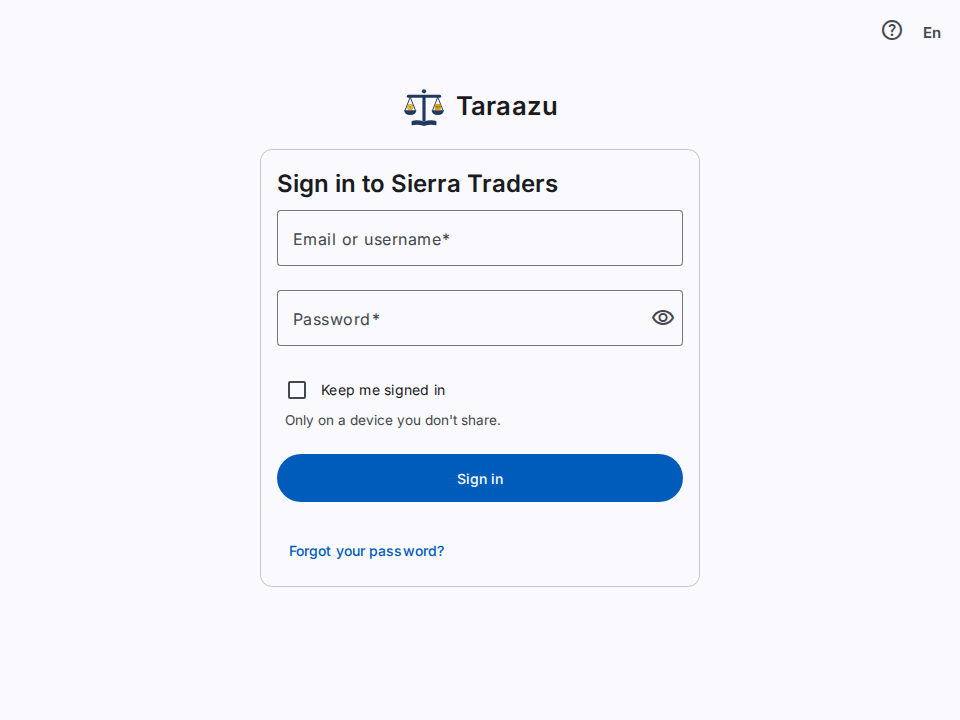
- Open the address of your workspace in your browser.
- In Email or username, type your e-mail address or your username.
- In Password, type your password.
- To see the password that you typed, select Show password (the eye icon).
- Caution: Do not keep the session on a device that other persons use. On your own device, select Keep me signed in.
- Select Sign in.
If the system asks for a code
If you use an authenticator app, the system asks for a code after your password. See Protect your account with an authenticator app.
- Open the authenticator app on your phone.
- In Code from the app, type the 6-digit code for this account.
- Select Continue.
If you use a passkey, select Use a passkey. Then do the steps that your device shows.
If you do not have your phone, select Use a recovery code. Type one of your recovery codes. Then select Continue.
Result
The system shows the home page. If the system asks for a new password, see Change your password.
The shared address
There is also one shared address for all workspaces. At the shared address, you can sign in with your e-mail address only. A username works only at the address of your workspace.
If your user is in more than one workspace, the system shows Choose a workspace. Select the workspace.
If you cannot sign in
- The message "The sign-in details are not correct." can have different causes. Examine the e-mail address or the username and the password. Then try again.
- After too many wrong passwords, the system stops the sign-in of your user for 15 minutes. The message stays the same. The system sends you an e-mail with the time when the stop ends. Wait, then try again. Your administrator can end the stop early.
- If you do not know your password, see Reset your password.
- The message "The code is not correct, or it was used before." means that the code is wrong or old. Wait for a new code in the app. Then type the new code.
- After 5 wrong codes, or after 5 minutes, the system shows "The sign-in stopped." Sign in again with your password.
- Wrong codes also count as wrong passwords. After too many, the system stops the sign-in of your user for some minutes.
When the session ends
- If you do nothing for some time, the system ends your session. Each session also has a maximum time.
- When the session ends, the sign-in page shows "Your session has ended. Please sign in again." Sign in again.
- With Keep me signed in, the session stays after you close the browser. The session ends after 30 days without use.
- Your workspace can disable Keep me signed in. Then the sign-in page does not show the option.